
Authenticator App - SafeAuth
SafeAuth Services.Tools
4.32.09K Reviews
- Version
- 1.7.7
- Installs
- 10.00M
- Age Rating
- Everyone
Screenshots
Our Review of Authenticator App - SafeAuth
 Analysis by Appyee
I judge an authenticator by what happens when I need a code at an awkward moment: a weak connection, a phone swap, or a sign-in page waiting on another screen. Authenticator App - SafeAuth is a tools app from SafeAuth Services that puts two-factor codes behind PIN and biometric protection. It aims to keep the extra security step simple, though the practical experience depends as much on your account setup and recovery habits as on the app itself.
Where the network matters—and where it may not
Two-factor authentication can involve several separate network moments: enrolling an account, signing in to that account, and restoring access after changing phones. Those steps are easy to blur together. The service you are signing into may need an internet connection, while the authenticator’s role is to provide the second factor. I would test the complete sign-in process for an important account before relying on it during travel or a connection problem.
For enrollment, keep the account’s setup page open while adding its authenticator entry, and finish by entering a generated code where the service asks for one. That confirmation is useful: it catches a scanning or typing mistake before you close the page. If you are setting up several accounts, do them one at a time and label each entry clearly if the app gives you that option. A tidy list matters when you are hurried and two accounts have similar names.
SafeAuth’s store summary emphasizes PIN and biometric protection, which is relevant when you open the app in a public place. A device connection issue does not automatically mean the authenticator itself will behave a certain way, so I would avoid making a last-minute assumption. The sensible approach is to check how your own account and setup behave before a flight, commute, or work trip—not during the sign-in you cannot afford to interrupt.
Using it across everyday mobile situations
The app is most useful when an account supports authenticator-based 2FA and you sign in on a second device, such as entering a code on a laptop while keeping your phone nearby. At home, that is a small extra step. In a café or shared workspace, it can be a more deliberate routine: keep the phone in your hand, open the protected app, read the current code, and enter it without leaving the sign-in screen exposed longer than necessary.
On a phone used for both work and personal accounts, separation and naming deserve attention. I would add accounts in a controlled session rather than scanning a pile of QR codes in a rush. After each setup, verify the code with the service and note which account it belongs to. This is a modest habit, but it prevents a surprisingly common source of friction: choosing a valid code for the wrong login.
Authenticator App - SafeAuth is free to install, and it is listed for Everyone. Its current version is 1.6.8, with Android support from version 6.0. The app has an average rating of 4.4 from around 140,000 ratings, alongside about 1,800 written reviews and over 10 million installs. Those figures suggest that many people have tried it, but they do not tell me whether its recovery workflow fits a particular account or phone setup. I would still test that part personally.
Recovery deserves more attention than setup
The point at which an authenticator becomes critical is often the moment a phone is lost, replaced, damaged, or unavailable. Before moving an account into SafeAuth, check that service’s own recovery options: backup codes, another trusted sign-in method, or its documented process for replacing a second factor. Keep recovery material somewhere separate from the phone. Saving the only way back into an account on the same device can turn a security measure into a lockout risk.
I would also avoid wiping an old phone immediately after changing devices. First confirm that you can access each important account with the new setup, then remove the old authenticator entry through the account’s security settings if appropriate. If the app offers a transfer or sync path, understand what it covers and verify the result before treating it as a backup. Sync can make device changes easier, but it is not a substitute for knowing how an account can be recovered.
There is a trade-off between convenience and control here. Keeping codes available on multiple devices may reduce the chance of being stranded, while also widening the number of places that need protection. A PIN or biometric lock helps protect access to the app, but it does not remove the need for a strong device passcode and sensible account recovery. I would choose the arrangement based on the consequence of losing access, not simply the fewest taps.
Privacy, spending, and choosing the right tool
Because an authenticator handles account codes, I would treat its phone as part of my security setup: use a screen lock, install updates, and be cautious about who can unlock the device. The app is free, with in-app purchases listed from $4.99 to $99.99 per item. I would check what a purchase actually adds before paying, and would not assume that a paid option is necessary for basic two-factor use.
Compared with a password manager that also generates authentication codes, a dedicated authenticator keeps the second-factor task focused, while a combined tool may be more convenient if you already manage passwords there. A hardware security key can be a stronger fit for people who want a physical sign-in factor and whose services support it, but it is another item to carry and protect. SMS codes may be easier to start with, yet they are tied to phone-number access and are not the same as using an authenticator. I would choose based on the services I need to protect and the recovery options I can maintain.
SafeAuth makes the most sense for someone who wants a straightforward place for authenticator codes and is willing to plan for phone changes. It may be the wrong choice for a person who expects automatic, effortless migration without checking how their accounts are restored, or for someone who needs a particular enterprise workflow or hardware-key requirement. In those cases, the account provider’s recommended method or an organization-approved tool should take priority.
One everyday example: I am signing in to a work account on a laptop while away from home. I keep the account’s recovery method available before the trip, unlock the phone with my normal protection, and enter the current code promptly. If the login fails, I do not repeatedly guess or expose the code to someone nearby; I check that I selected the right account and follow the service’s recovery route. That small routine is more useful than assuming an authenticator will solve every connectivity or access problem.
Getting Started with SafeAuth
First things first, downloading the Authenticator App - SafeAuth is a breeze. Whether you’re on Android or iOS, just hit up the app store, and you’re good to go. The installation is quick, and you’ll be prompted to create an account. This is where SafeAuth starts its magic by encrypting your data right from the get-go. Pretty neat, right?
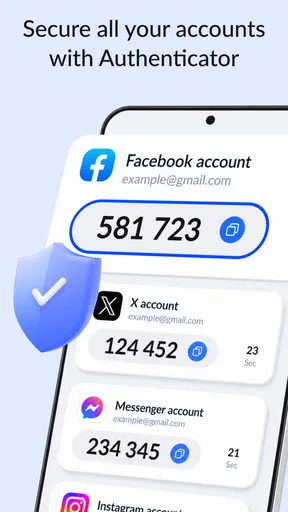
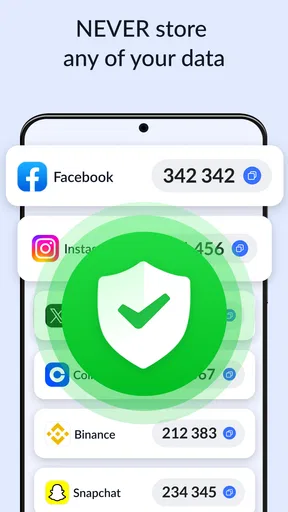
The app’s layout is straightforward. I’m talking no-nonsense, clean, and minimalistic. You won’t find any unnecessary fluff here, which I appreciate. The dashboard is intuitive, showing your linked accounts and their corresponding security codes. It’s all about efficiency.
Features That Stand Out
Let’s talk about features. SafeAuth is packed with everything you’d expect from a top-notch authenticator app, plus a few extras that make it stand out.
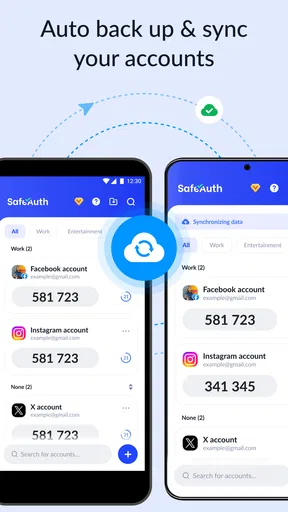
- Multi-Device Sync: This feature is a lifesaver. You can sync your codes across different devices, so you’re never locked out if you switch phones or use a tablet. It’s seamless and works like a charm.
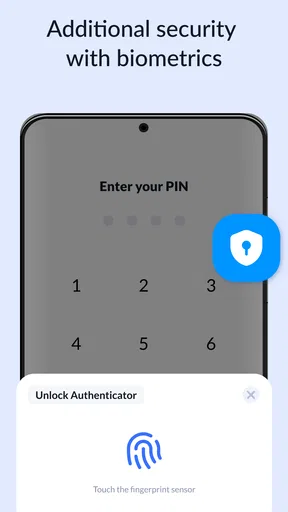
- Biometric Security: SafeAuth takes security seriously. You can enable fingerprint or facial recognition, adding an extra layer of protection. It’s quick, secure, and kind of cool, if I’m being honest.
- Offline Mode: No internet? No problem. SafeAuth generates codes even when you’re offline. This is perfect for those moments when you’re traveling or stuck in a no-signal zone.
What’s It Like Using SafeAuth Daily?
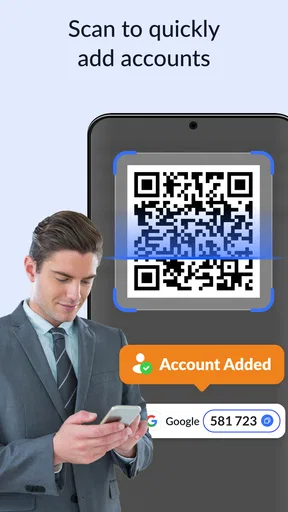
Day-to-day use of SafeAuth is pretty smooth. Adding new accounts is simple. Just scan a QR code or enter your details manually if you like doing things the old-school way. Once set up, SafeAuth generates time-based codes that you enter alongside your password for two-factor authentication (2FA).
Now, I’ve tried a bunch of authenticator apps in my time, and one thing I notice with SafeAuth is its speed. Codes refresh promptly, and I’ve never experienced lag. It’s reliable, which is exactly what you want when dealing with security.
Room for Improvement?
While SafeAuth is impressive, it’s not without its quirks. I’d love to see more customization options. Maybe themes or different layouts? Just a thought. Also, while the app is user-friendly, a little more guidance for beginners wouldn’t hurt. A quick tutorial or FAQ section could make the onboarding process even smoother.
Another area for potential growth is integration with other apps. SafeAuth does a fine job on its own, but partnerships with password managers could take it to the next level. Imagine a seamless ecosystem where everything talks to each other!
Final Thoughts
So, is the Authenticator App - SafeAuth worth your time? In my opinion, absolutely. It’s a solid choice for anyone looking to beef up their digital security without the hassle. Its features are practical, its interface is user-friendly, and the security is top-notch.
If you’re tired of juggling multiple authenticator apps or just getting started with 2FA, SafeAuth is a fantastic option. It’s reliable, efficient, and gives you peace of mind knowing your accounts are secure. Give it a shot, and let me know what you think. Until next time, stay safe out there!
Privacy and Permissions
See what permissions an app requests and how it handles your data.
- Photos/Media/Files
- read the contents of your USB storage, modify or delete the contents of your USB storage
- Storage
- read the contents of your USB storage, modify or delete the contents of your USB storage
- Camera
- take pictures and videos
- Other
- view network connections, full network access, read terms you added to the dictionary, control vibration, prevent device from sleeping, read Google service configuration
Verdict
Strengths of Authenticator App - SafeAuth
- Highly secure with two-factor authentication.
- User-friendly interface; easy to navigate.
- Supports multiple accounts and platforms.
- Quick setup with QR code scanning.
- Offline access for enhanced security.
Limitations of Authenticator App - SafeAuth
- No cloud backup option available.
- Limited customization of interface.
- Ads can be intrusive at times.
- No biometric login option.
- Syncing issues on some older devices.
Similar Picks in This Category
View All
Google LLC4.0

Gboard - the Google Keyboard
Google LLC4.5

Google Play services
Google LLC4.3

Google Play Store
Google LLC4.9

Files by Google
Google LLC4.5

SHAREit: Transfer, Share Files
Smart Media4U Technology Pte.Ltd.4.3
Frequently Asked Questions
What is the primary function of SafeAuth?
SafeAuth is an authenticator app designed to enhance the security of your online accounts by providing two-factor authentication (2FA). It generates time-based, one-time passwords (TOTPs) that you need to enter along with your regular password to access your accounts. This helps protect against unauthorized access and potential breaches.
Is SafeAuth compatible with all online services?
SafeAuth is compatible with a wide range of online services that support time-based, one-time passwords for two-factor authentication. These include major platforms like Google, Facebook, and Amazon. Before setting it up, check if your specific service supports 2FA and can be paired with an authenticator app like SafeAuth.
How secure is SafeAuth in protecting my data?
SafeAuth employs advanced encryption methods to ensure that your data remains secure on your device. It does not store any information in the cloud, reducing the risk of data breaches. Additionally, the app requires a master password or biometric authentication to access, providing an extra layer of security.
Can I use SafeAuth across multiple devices?
SafeAuth allows you to set up accounts on multiple devices, but you need to manually sync each device. It is important to back up your account settings securely, as losing access to the app without a backup may lock you out of your accounts. The app provides guidance on how to safely back up your data.
What should I do if I lose access to my SafeAuth app?
If you lose access to SafeAuth, it’s crucial to have backup codes for your accounts, which are typically provided during the initial 2FA setup. These codes can help you regain access. If you have backed up your SafeAuth data, you can restore it on a new device. Always ensure you have these backups to avoid being locked out.
